How to test a used gaming laptop: GPU, temperatures and screen (with pictures)
Gaming laptops work harder than any other laptop, so they wear faster. On top of the normal checks in our Windows laptop guide, test these five things.
Step 1: Confirm the graphics card
- Press Ctrl, Shift and Esc together to open Task Manager.
- Click Performance (the chart icon), then look for GPU 0 and GPU 1.
- One is usually the built-in graphics. The other must be the dedicated card from the listing (for example an NVIDIA GeForce RTX).
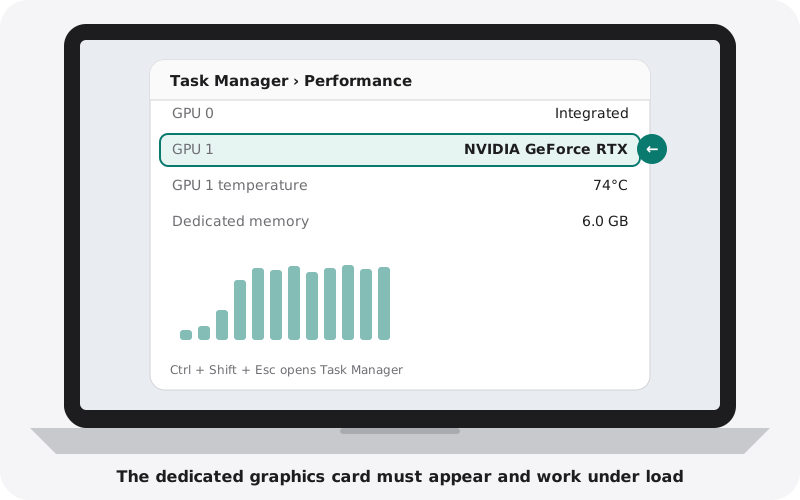
You can also press the Windows key and R, type dxdiag and press Enter. The Display or Render tab shows the graphics card and its memory.
Step 2: Check the screen refresh rate
- Open Settings, System, Display, then Advanced display.
- Open Choose a refresh rate and select the highest option.
- It should match the listing, for example 144 Hz or 165 Hz.
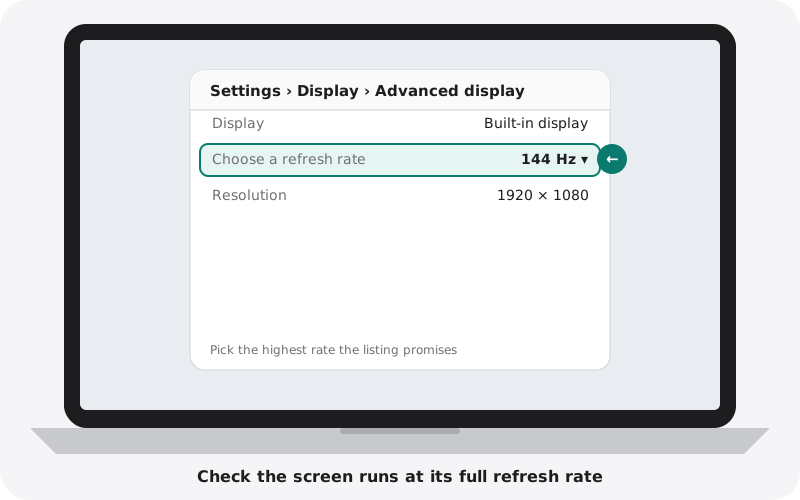
Move a window around quickly. At a high refresh rate, motion should look noticeably smoother.
Step 3: Run a 15-minute stress test
- Run a demanding game or a free graphics benchmark for 15 minutes.
- Keep Task Manager open on a second screen or check it afterwards: the dedicated GPU should show high usage.
- Watch the temperatures in Task Manager (GPU temperature) or in the laptop's own control app.
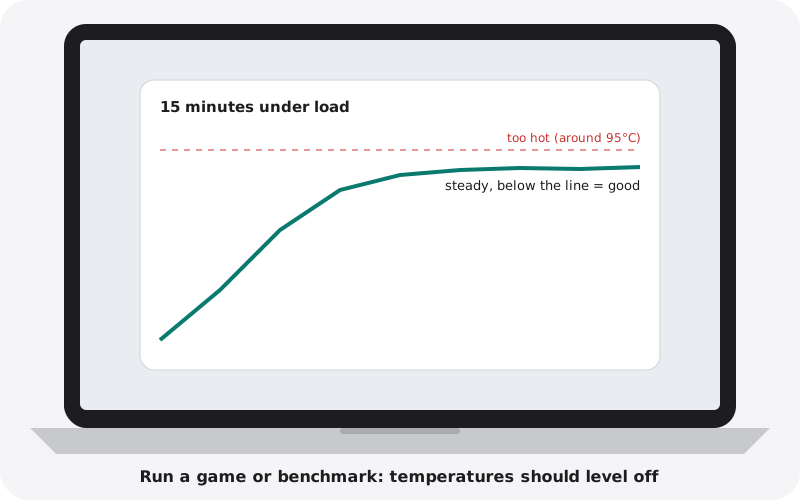
- Good: temperatures rise for a few minutes, then stay steady.
- Warning: the laptop shuts down, the game crashes, or you see flashing coloured blocks or lines on screen.
- Warning: the GPU stays above about 87°C, or the processor sits at 100°C the whole time. The fans and cooling probably need cleaning.
Step 4: Listen to the fans
The fans should get louder under load and quieter afterwards. Grinding, clicking or rattling means a fan is worn. A fan that never spins up is a bigger problem.
Step 5: Check the screen for backlight bleed
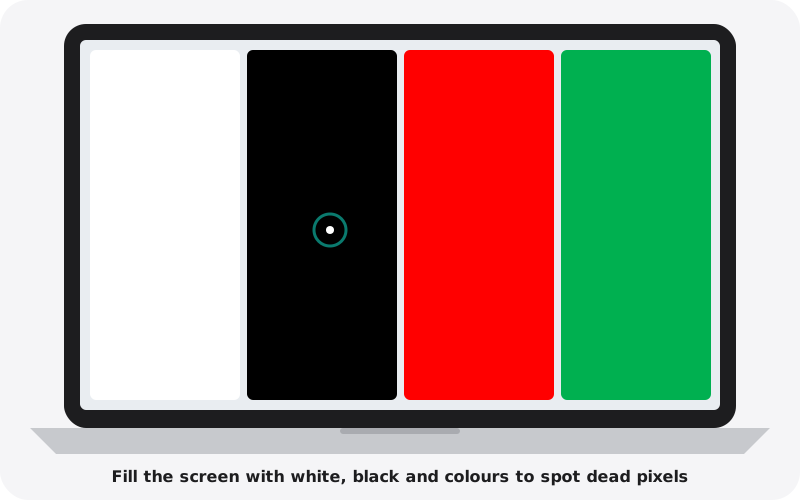
In a dark room, display a full-screen black image at full brightness. A little glow at the edges is normal. Large bright patches or strong colour tints are not.
Also check
- The original high-power charger is included and is the correct wattage
- The most-used keys (W, A, S, D, space) are not worn shiny or loose
- RGB keyboard lighting works in every zone
- Battery health in the battery report (see our battery guide)
- The bottom case screws are all present (missing screws can mean it was opened)
Buying from nexlap
Our gaming laptops are stress-tested, cleaned and checked for GPU faults before they are listed. Browse gaming laptops.